MacOS
Your cloud. Exclusively.
Dedicated M4 / M4 Pro bare-metal deployment across 5 global data centers, flexible daily billing, and automated delivery within minutes of ordering.
Years in Operation
Business & Team Clients
Server Deployment Nodes
Platform Availability
Three Simple Steps to Your Cloud Mac
From purchase to full access, everything is handled automatically. No ops experience needed—the entire delivery process typically completes in minutes.
Choose your plan and billing cycle
On the plans page, choose a Mac mini M4 or M4 Pro model, optionally add storage, and select from daily, weekly, monthly, or quarterly billing.
Create an account and complete payment
After registration and payment, the Platform automatically allocates a dedicated instance and initializes the configuration. Multiple common payment methods are supported—no manual intervention required.
Connect via SSH or VNC
Once you receive your login credentials, connect to your cloud Mac via SSH terminal or VNC graphical desktop to run Xcode builds or CI/CD automation tasks at any time.
Start working immediately
The instance is initialized right after payment. Log in via SSH or VNC and get to work—no waiting.
Find the right use case for your needs
Individual Developers
No hardware to buy—pay flexibly by day or month. Run Xcode builds or CI pipelines with ease. Release the instance when you're done; billing matches your actual usage exactly.
Dev Teams & Enterprises
Manage multiple machines simultaneously for parallel compilation and distributed testing. An elastic resource pool for scaled teams, with API support for automated scheduling and resource release.
Full technical support included
More than just machine rental—a built-in dedicated management console and professional technical team ensure your cloud Mac experience matches local hardware.
> [CONFIG] Mac mini M4 / M4 Pro Deploying...
> [STATUS] Physical machine check: PASSED
> [STATUS] Clean OS Install: COMPLETE
> [STATUS] Logistics: IN_TRANSIT
> Ready for deployment.
Choose your dedicated machine
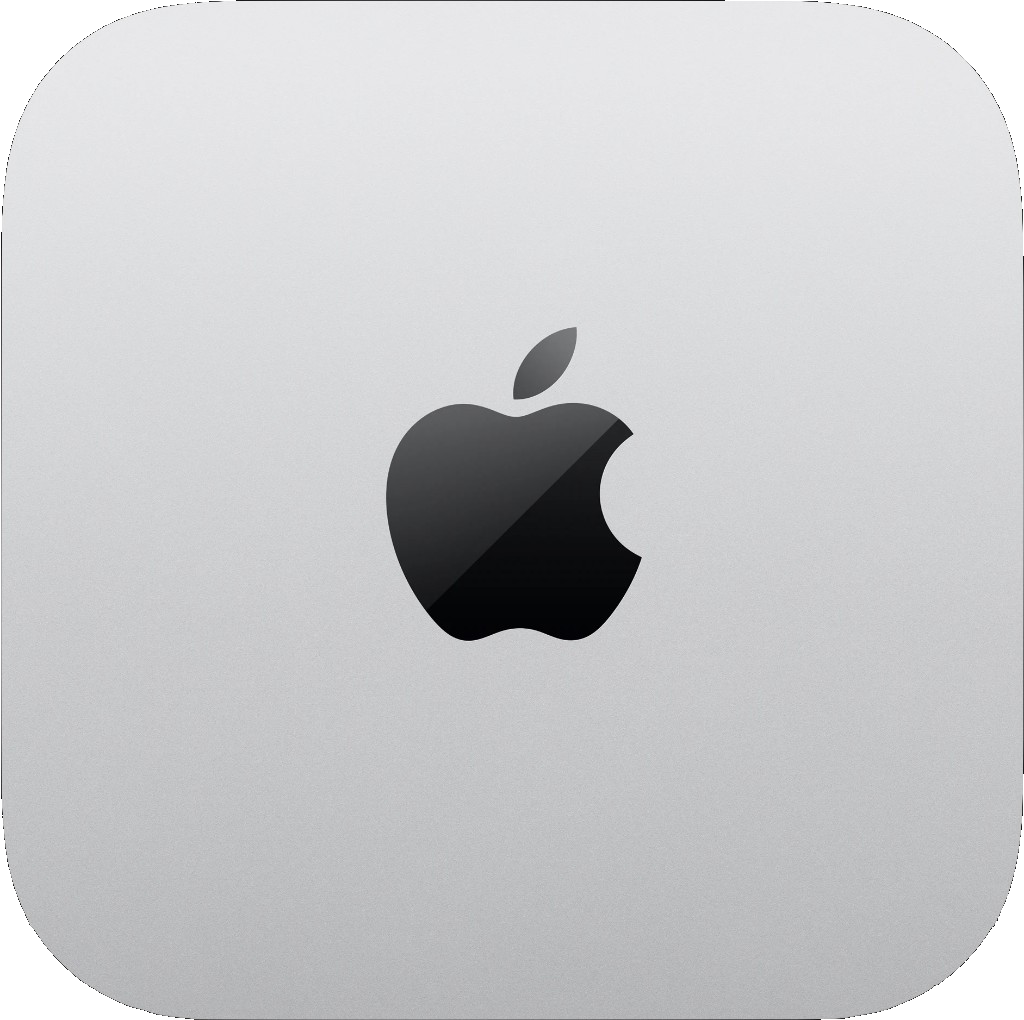
Mac mini M4
For indie developers and small automation tasks · 10C CPU / 10C GPU / 16GB · 1Gbps · Ready instantly
Mac mini M4
For mid-to-large mobile dev teams · 10C CPU / 10C GPU / 24GB · 1Gbps · Ready instantly
Mac mini M4 Pro
14C CPU / 20C GPU / 64GB / 2TB · For intensive compilation and enterprise concurrency · 1Gbps · Ready instantly
* All prices exclude tax · Extra storage +1TB $11.3/mo · +2TB $22.6/mo · Multi-node link $7.1/mo
5 global data center nodes
Connect to the nearest node for your business needs—reduce cross-border latency and support development, builds, automation, and remote desktop workflows.
Detailed spec comparison
| Model | Core Specs | Ideal For | Network Speed |
|---|---|---|---|
| Mac mini M4 | 10C CPU / 10C GPU / 16GB | Personal Dev | 1 Gbps |
| Mac mini M4 | 10C CPU / 10C GPU / 24GB / 512GB | Mid-size Projects | 1 Gbps |
| Mac mini M4 Pro | 14C CPU / 20C GPU / 64GB / 2TB | Team Deployment | 1 Gbps |
FAQ
How do I access the Mac graphical interface via VNC?
VNC lets you remotely control your cloud Mac's graphical desktop directly on your local screen. First, go to the order details page to get your VNC connection info: server IP, port, and password.
On Mac: Open Finder, click Go → Connect to Server in the top menu, enter vnc://server-IP:port, click Connect, and enter your password to access the remote desktop.
On Windows: Install a VNC client such as RealVNC Viewer or TightVNC. Create a new connection with the server address and port, then enter the password when prompted.
We recommend saving the password on first login for quicker access later. VNC also supports bidirectional file transfer and clipboard sync.
How do I connect to the remote host via SSH?
SSH is the most efficient way to manage remote servers, especially for running automation scripts and batch operations. Find the relevant order in the console and note the host IP, SSH port, username, and password.
Open a terminal and run: ssh -p SSH_PORT USERNAME@HOST_IP. On first connection, you'll be asked to confirm the host fingerprint—type yes, then enter your password to log in.
The Platform supports both password and key-based authentication. Using an SSH key is recommended for better security; use ssh-copy-id to push your local public key to the server. Port 22 is the default; some nodes use non-standard ports for security reasons.
Are the machines real physical hardware or virtualized instances?
All machines we provide are genuine Mac mini physical hardware—no virtualization, no resource sharing of any kind. Each user has exclusive access to the full hardware performance and complete OS-level control of their device. CPU, memory, and storage are entirely yours, unaffected by other users' workloads. Physical isolation architecture delivers the highest level of data security and business stability.
Ready to get started?
Over 1,000 developers have already obtained dedicated Apple Silicon cloud computing power through nuzcloud.